For this tutorial, we assume that you have a simulation running, and it is properly using the high-performance GPU on your system. Ideally, you have worked through or reviewed the previous tutorials.
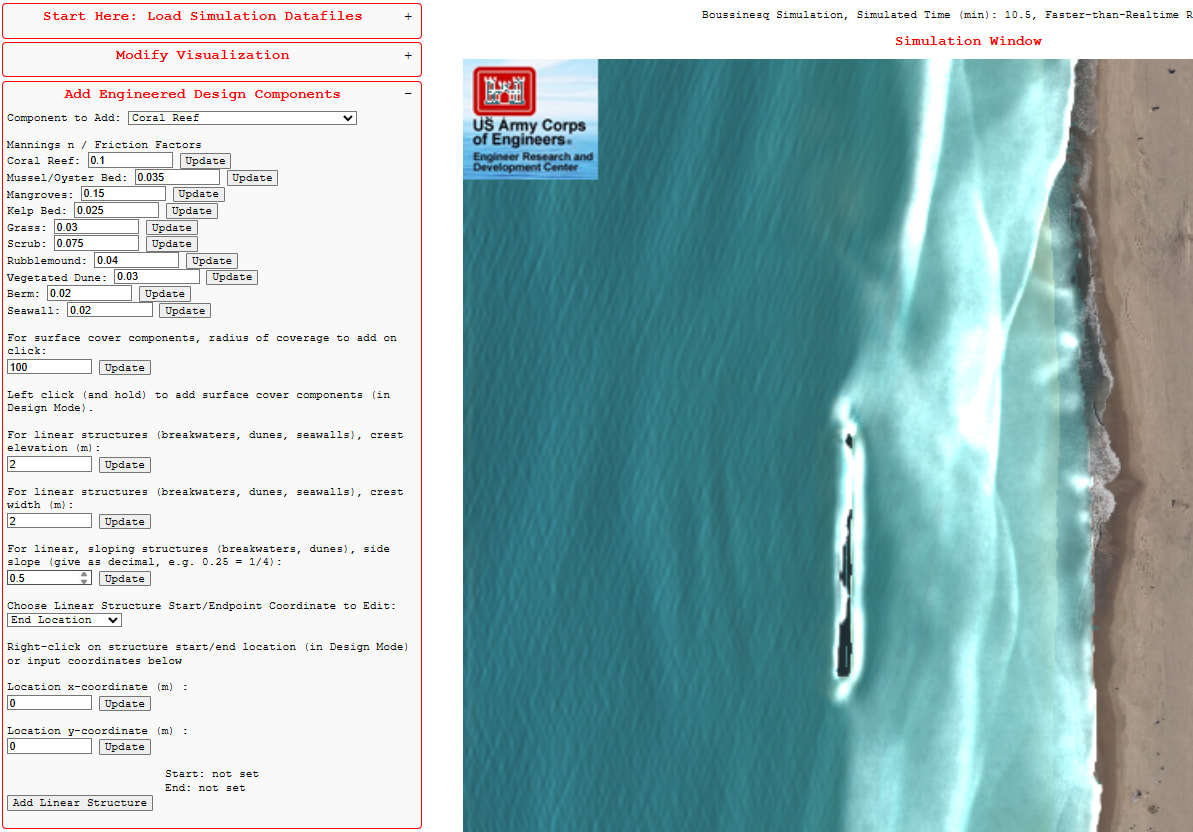
Set your simulation to look like the below (viewing the Free Surface Elevation with the Ocean colormap), and open the “Add Engineering Design Components” Panel:

In this Panel, the user can add various NBS-type design components and (eventually) piece-wise linear structures such as breakwaters, dunes, etc. (note that any option in any Panel with an asterisk is not yet functional). The addition of design components is done through a “painting the canvas” approach – the user picks which component to add, and then clicks on the desired area to add it.
These components are represented in the model, currently, only as a change in the local bottom friction factor. The bottom friction factors that correspond to the components are listed in this Panel, and can be changed to any value by the user. Note that the examples are, by default, configured to use friction expressed through a quadratic friction law, and so the friction factors used reflect this. The model is also able to use the Manning’s friction model – setting or changing this can be done through the “Modify Simulation Parameters” Panel, or by Creating a Custom Configuration.
For example, select “Mangroves” from the “Component to Add” dropdown. We will keep the friction factor as the default value displayed in the Panel. Add some mangroves along the shoreline - to add mangroves to the domain, simple click and hold. You should see images of mangroves appear where you clicked:

The radius of coverage controls the size of each component that is added as you click on the canvas. Change that number to 500 m. Also change the component to Medium Vegetation, and then add this feature to some of the inland area:

Add one more component, a kelp bed offshore. Change the component to “Kelp Bed” and then click in the offshore area. You should see the ocean surface change color:

As mentioned, these components are represented by a spatially varying bottom friction coefficient. To see the 2D map of the bottom friction, open the “Modify Visualization” Panel, select “Bottom Friction Map” as the property to plot, use Turbo or Parula as the colormap, and change the Color Axis values to range from 0 to 0.1. You should see an image like this:

The mangroves that are placed near the shoreline have a very large friction value, while the offshore kelp bed can be seen by the light blue.